How to upscale a photo and keep the face
- Add the photo. Drop it on the box, paste it with Ctrl+V, or tap to pick it. On this page the Type starts on Photo, the setting made for camera pictures.
- Keep Clean-up low. Auto reads the JPEG compression and picks a level. For a portrait, Off or Light keeps skin texture. Use Strong only when the file is full of blocks.
- Upscale and compare. Press Upscale. Before you download, look at the eyes, the teeth and any text at full size. If you like it, save it as PNG, JPG or WebP.
Before and after
Real crops from our open-licensed test set. Before is a plain bicubic enlargement, the kind any resizer gives you. After is the waifu2x model named under each image.
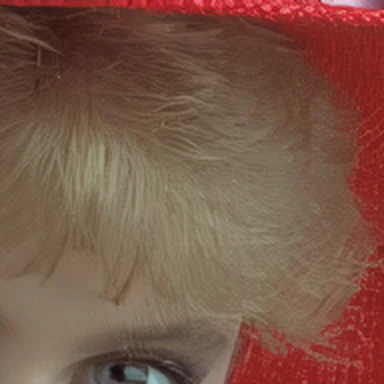
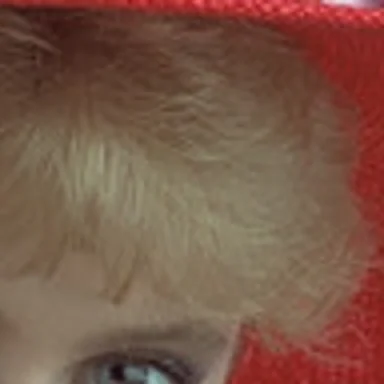 BeforeAfter
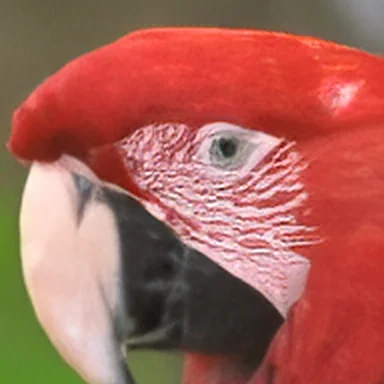
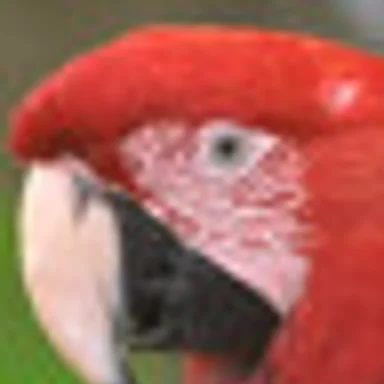 BeforeAfter
Super-resolution is not generative AI
Both use neural networks, but they do different jobs. A generative tool is asked to make a better-looking picture, so it is free to paint new details. A super-resolution model is asked to rebuild the same picture at a larger size, pixel by pixel.
| This upscaler | Generative "enhancers" | |
|---|---|---|
| Faces | Same shape, same features, cleaner edges | Can change eyes, teeth, nose and age |
| Text and logos | Kept as they are, only sharper | Can turn letters into lookalike shapes |
| Details that were never captured | Not added. Soft areas stay soft | Invented to look plausible |
| Same photo, run twice | Same result every time | Often a different result each time |
| Where it runs | On your device | Usually on a remote server |
That is why we never promise "no AI": there is a model doing the work. The promise is narrower and checkable. It does not generate content that was not in your photo.
When this is the right tool
- Photos of real people. Family pictures, a profile photo, a team page. Anyone who knows the person should still recognize them.
- Product photos. The label, the stitching and the logo must stay true to the real item.
- Photos with text. Signs, menus, screenshots of a document. Generative tools tend to rewrite letters.
- Evidence of what was there. Real estate, insurance, a report. You want the same scene, larger, not a nicer guess.
If you want a portrait to look younger, smoother or "professional", that is a beauty or generative tool, not this one.
How to check that nothing was invented
- Use the slider. The before and after view lets you drag across the same spot. Features should line up exactly.
- Look at small things. Eyes, teeth, ears and jewelry are where generative tools change the most. Here they only get cleaner edges.
- Read the text. Every letter should say what it said before.
- Zoom to 100%. Open the downloaded file at full size. A smaller preview can hide smoothing.
Honest limitations
- Tiny faces stay soft. A face 20 pixels wide in a group photo has no eyes to recover. It becomes a smooth, larger shape, not a portrait.
- Strong clean-up smooths skin. On a heavily compressed file, removing blocks also removes some fine texture. Try Light first.
- Blur stays blur. A shaken or out-of-focus photo improves very little, because the detail was never captured.
- No restoration. Tears, scratches, faded colors and missing parts are not repaired.
Frequently asked questions
Is this an image upscaler with no AI?
Not exactly, and we will not claim it. It uses a neural network trained for super-resolution. What it does not do is generate new content: it enlarges and cleans the pixels you already have.
Will it change my face?
No. The model rebuilds the photo at a larger size and has no instruction to make it prettier. Eyes, nose and teeth keep their shape. On a very small face, they simply stay soft.
Why do ChatGPT, Gemini or beauty apps change faces?
They generate a new image that looks like yours. When detail is missing, they fill it with something plausible, and that guess can be a different nose, smile or age. A super-resolution model does not fill gaps with guesses.
Does it apply a beauty filter or smooth the skin?
There is no beauty filter. The only thing that can smooth skin is Clean-up, which removes JPEG blocks. Set it to Off or Light if you want to keep every pore and the original grain.
Which setting is best for portraits?
Type Photo, 2x and Clean-up Auto or Light. Use 4x only for a small crop, because a bigger jump means less real information per pixel.
Can I use it for an ID or passport photo?
Check the rules of the office first. Many ask for an unedited photo, and enlarging is an edit. For a print at the right size, a sharp original from a camera is always better.
Will it restore an old or damaged photo?
It makes a scan sharper and removes compression blocks. It does not repair scratches, tears or missing parts, and it does not colorize. Those need a restoration tool.
Does it work on group photos?
Yes, but each face gains only what its pixels allow. Faces that are large in the frame get cleaner. Faces in the back row stay soft instead of being redrawn.
Is my photo uploaded?
No. It is processed in your browser and never sent to a server. Only the model file is downloaded, once, and then reused.
Is it free? Is there a watermark?
It is free, with no account, no watermark and no daily limit. The work runs on your device, so we do not pay a server per image.