How to upscale a photo in 3 steps
- Add the photo. Drop it on the box, paste it with Ctrl+V, or tap to choose from your gallery. The type is already set to Photo on this page.
- Choose 2x or 4x. 2x is the safe choice for a photo that is a bit small. 4x suits a small crop or a thumbnail, and needs more memory.
- Upscale and download. Watch the progress bar, then choose PNG, JPG or WebP and download.
Before and after
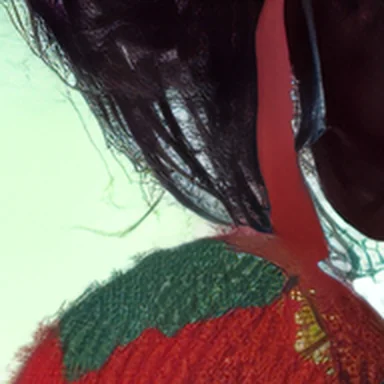
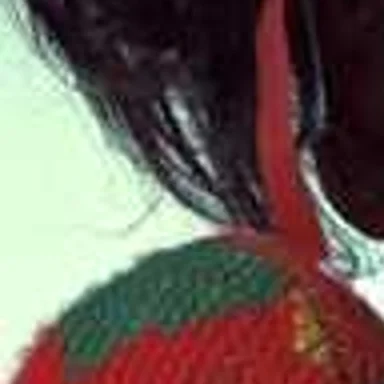
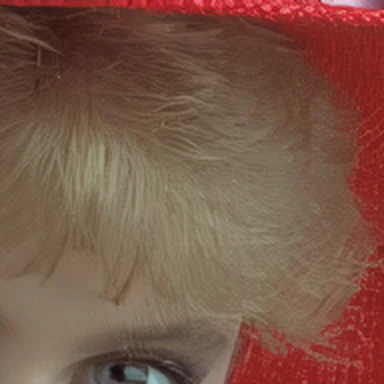
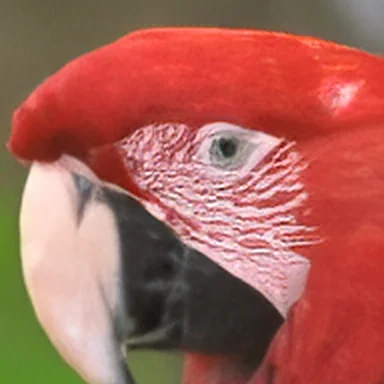
Real crops from our open-licensed test set. Before is a plain bicubic enlargement, the kind any resizer gives you. After is the waifu2x model named under each image.
 BeforeAfter
 BeforeAfter
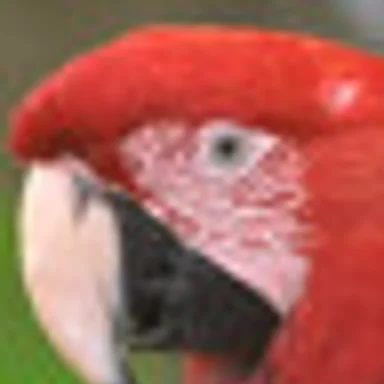 BeforeAfter
The model behind the photo setting
The Photo type uses the waifu2x photo model, trained on camera pictures.
- Keeps texture. A drawing model turned a knitted sweater into flat painted shapes. The photo model kept the wool.
- Does not invent. It is super-resolution, not generative AI, so a person still looks like the same person.
- Best on clean photos. It had the lowest error at 2x and 4x. For a badly compressed JPG, try Clean-up Strong.
Details are on How it works. Worried that AI will change a face? Read upscaling without generative AI.
Noise reduction
Clean-up: Auto reads the JPEG compression for you, and PNG gets none. If a JPG still looks blocky, choose Strong.
Photos that benefit most
- Old digital photos. Pictures from early phones and compact cameras at 1 or 2 megapixels.
- Photos saved from the web. Small copies with compression blocks.
- Crops. When you crop a small area from a bigger shot and it falls apart on a big screen.
- Scans of prints. A scanned photo with grain and a low resolution scan setting.
- Product pictures and listings. A small marketplace image that needs to look sharper on a bigger layout.
Honest limitations
- It is not a restoration tool. It cleans and sharpens what exists. It does not repair tears, remove people or fill in missing parts.
- Out-of-focus and shaken photos improve very little. If the detail was never captured, no upscaler brings it back.
- Skin can look smoother on very low-quality sources. Check the result, and set Clean-up to Off or Light if you want to keep grain.
- Large photos need memory. A 12-megapixel photo at 4x is a 192-megapixel result, which is too much for most devices. Use 2x or crop first.
Frequently asked questions
How do I upscale a photo without making it look fake?
Use a super-resolution model rather than a generative one. This page uses the waifu2x photo model, which enlarges and cleans without redrawing faces. Keep the clean-up low, and check the result before you download.
Does it change faces?
It is not designed to. It does not generate new facial features. On a very blurry face it will make the existing shape cleaner, not invent eyes or teeth.
What is the best scale for a photo, 2x or 4x?
2x for most photos. 4x for small images or crops, if your device has enough memory. A bigger jump gives the model less real information per pixel, so the result looks smoother.
Why is my photo not sharper?
If the original was out of focus or has motion blur, there is not much detail to recover. The model reduces JPEG blocks and sharpens edges that exist. It cannot create what the camera never recorded.
Does it work on photos from WhatsApp or screenshots?
It helps with the blocky look. Leave Clean-up on Auto, or choose Strong, and compare the results.
Can I upscale a photo to print size?
Yes, within limits. 2x doubles the width and height in pixels. At 300 DPI, a 3000 × 2000 px result prints at about 25 × 17 cm. See the 4K and print guide.
Is my photo uploaded?
No. The photo is processed in your browser and never sent to a server. Only the model file is downloaded, once.
Do I need an account, and is there a watermark?
No account and no watermark. It is free and has no daily limit.
Does it keep EXIF data like location?
The PNG you download is a new image and does not carry the EXIF data of the original, so location tags are not copied.
Will it work on my device?
Yes. A device with WebGPU is much faster. Without it, the page uses a lighter engine at 2x.